
Google Consent Mode v2: How to Set Up, Deploy, and Test (2026 Guide)

Table of Contents
Quick Overview: Google Consent Mode v2 implementation tells Google tags how to behave before and after a visitor makes a consent choice. It sets default consent states before tags fire, updates those states after user action, and verifies the result in Tag Assistant. Enzuzo, a Google-certified CMP, can simplify that setup.
Google consent mode implementation usually becomes urgent when Google Ads flags missing consent signals, GA4 data shows gaps, or no one on the team can confidently say that tags are behaving correctly before consent is granted. Google consent mode v2 now raises that pressure, since Google added new consent parameters and expects teams using Google tags for measurement or ads workflows to pass the right signals.
This guide walks through a practical Google consent mode v2 setup using Enzuzo, a Google-certified consent management platform (CMP) listed as Gold in Google’s CMP Partner Program. The goal is simple: get your banner, GTM container, GA4 setup, and Google Ads tags working together so consent defaults load first, updates fire after user action, and your implementation is easy to test.
What Is Google Consent Mode v2 (and Why v2 Matters)
Google Consent Mode v2 lets you send a visitor’s consent status to Google so Google tags can adjust how they behave. It does not give you the banner itself, but works with your own banner or CMP. It’s important to separate these two ideas, since many teams think turning on Consent Mode replaces the cookie consent banner layer itself. It doesn’t.
What changed in v2 is the addition of two more consent parameters: ad_user_data and ad_personalization. According to Google, ad_user_data is required for measurement use cases such as enhanced conversions and tag-based conversion tracking, and ad_personalization controls consent for personalized advertising. You must send all four parameters in v2 (including the two new ones) for a fully compliant implementation.
Google supports two implementation models: In basic consent mode, Google tags stay blocked until the visitor interacts with the banner. In advanced consent mode, tags load with defaults set to denied, can send cookieless pings while consent is denied, and then switch behavior after the visitor makes a choice.
Google’s advanced mode supports a more detailed advertiser-specific model, while basic mode relies on a more general model.
Basic vs. Advanced implementation models
| Feature | Basic Consent Mode | Advanced Consent Mode |
| Tag loading | Blocked until user interacts with banner | Loads immediately with defaults set to denied |
| Data before consent | Nothing sent (not even default status) | Cookieless pings sent (consent state + key events) |
| After consent | Tags load and fire normally | Tags dynamically adjust (cookies written if granted) |
| Modelling | General (less precise) model | Advertiser-specific (more detailed) model |
Google Consent Mode v2 Requirements: What You Need Before You Start
Google supports custom-banner implementations, though this walkthrough uses the CMP path, since Google’s CMP Partner Program is designed to help advertisers deploy banners and pass consent choices to Google tags via Consent Mode and GTM.
Before you touch GTM, you should settle four decisions:
- First, decide whether to use basic or advanced mode.
- Second, decide on your default consent state by region.
- Third, map your banner categories to Google’s consent signals.
- Fourth, know which tags need consent checks beyond their built-in behavior. GTM has a Consent Initialization trigger, per-tag consent settings, and a Consent Overview page to help manage that work.
For this walkthrough, your checklist is:
- A consent banner or CMP that can collect consent and pass the result to Google. You can build your own banner or use a CMP partner. For this tutorial, we’re using Enzuzo. Ensure your consent banner asks explicitly for:
- Advertising cookies/storage
- Analytics cookies/storage
- User data for ads
- Personalized advertising.
- A GTM container with permission to edit tags, triggers, and publish changes. GTM’s consent features are built for this setup.
- GA4 or Google Ads tags already installed, or ready to install, so you can tie consent states to the tags that matter.
- A consent policy by region so your defaults match your actual requirements. Google supports region-specific defaults in consent commands.
- A testing plan using Tag Assistant and GTM preview mode before you publish changes to production. Google recommends Tag Assistant for verification.
How to Implement Google Consent Mode v2: Step-by-Step
The steps below use Enzuzo, a Google-certified CMP, as the implementation tool. Enzuzo is a Google Consent Mode Gold Partner, supports GTM integration, and implements Google Consent Mode v2 for GDPR and CCPA compliance workflows through the banner and tag setup you control.
Step 1: Set Up Enzuzo as Your CMP
- Register a free Enzuzo account (no credit card needed). As a Google Consent Mode certified platform, Enzuzo helps you manage privacy signals through a single dashboard.
- Configure and customize your consent banner to match your brand.

- Configure banner buttons and layout. Enzuzo provides templates for compliant banners. In the display settings, you’ll choose when the banner appears. You can block site access until a visitor makes a choice or set it to show above other pop-ups and widgets so they don’t conflict.

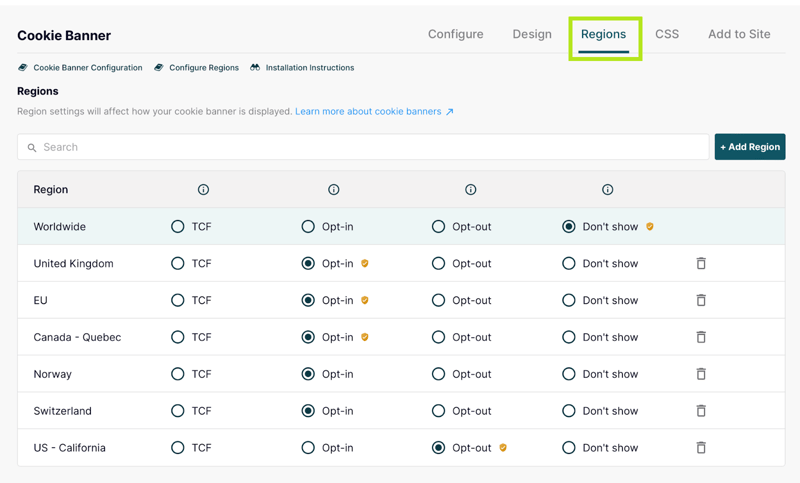
- Set up your cookies consent banner regions. Certain privacy laws, like GDPR, require specific consent settings for your banner to be fully compliant. You can also turn on regional IAB Europe TCF requirements here, which automatically changes your banner settings to follow their guidelines.
- We recommend keeping the accept, decline, and cookie manager toggles active to meet legal standards. While you can use a minimal design, your banner might not stay fully compliant if you remove these options.

Step 2: Configure Default Consent State
Your consent initialization setup controls how Google tags behave before a visitor makes a choice. The default consent state must load before any Google tags evaluate. In GTM, that usually means firing your consent-related tag on the Consent Initialization trigger.
Use the gtag('consent', 'default', ...) command to set the baseline status for each consent type. In most regulated setups, the default starts as denied until the visitor accepts or customizes consent. Denied means consent has not been given yet. Granted means the visitor has approved that category.
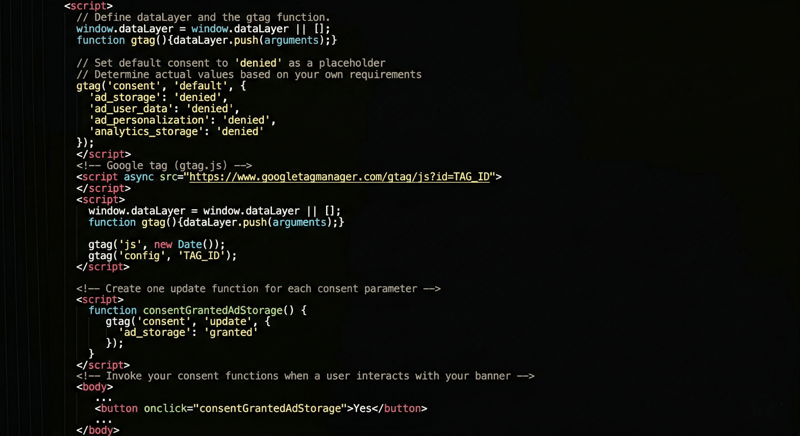
This tells Google tags to assume consent has not been granted yet. The wait_for_update setting gives your banner or CMP a short window to pass the visitor’s actual choice.
Do not set the default to granted unless that matches your legal and banner logic. In most GDPR-focused setups, denied is the correct starting point; the consent state is updated only after the user acts. The key is simple: use consent initialization to set the default first, then let your GA4 and Google Ads tags evaluate.
Step 3: Deploy via Google Tag Manager
👉 For this step, use our guide for a detailed walkthrough on how to implement cookie consent with Google Tag Manager using Enzuzo’s cookie consent banner. It’s the perfect resource for anyone looking to streamline their privacy workflow and improve user transparency.
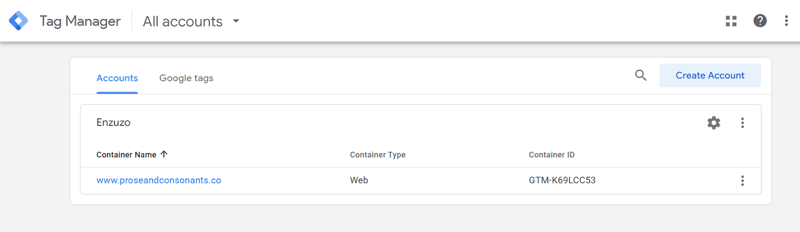
Deploying via GTM is the recommended (and Google-preferred) method for Google Consent Mode v2 because it ensures the consent banner loads first, sets default consent states immediately, and automatically pushes consent updates to Google tags.
After saving, always Submit and Publish your GTM workspace so the changes go live. You’ve now successfully deployed the Enzuzo consent manager via GTM.
Step 4: Configure GA4 and Google Ads Tags for Consent Mode
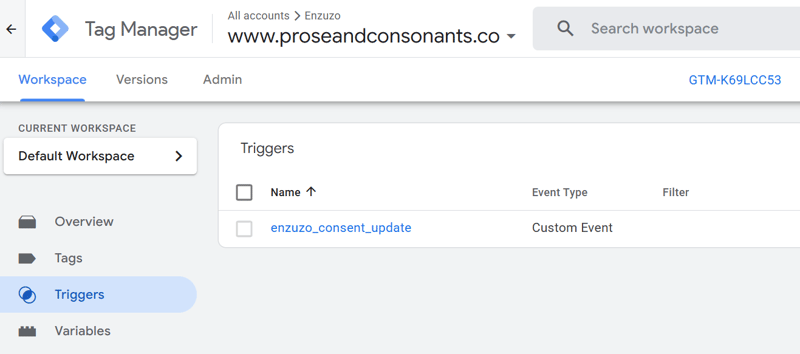
Now that the Enzuzo Cookie Manager tag and the enzuzo_consent_update trigger are live in Google Tag Manager, it’s time to connect your GA4 and Google Ads tags so they fire only after a visitor has given consent through the Enzuzo banner.
Update your GA4 Configuration tag
- Go to Tags → find your GA4 Configuration tag and click to edit it.
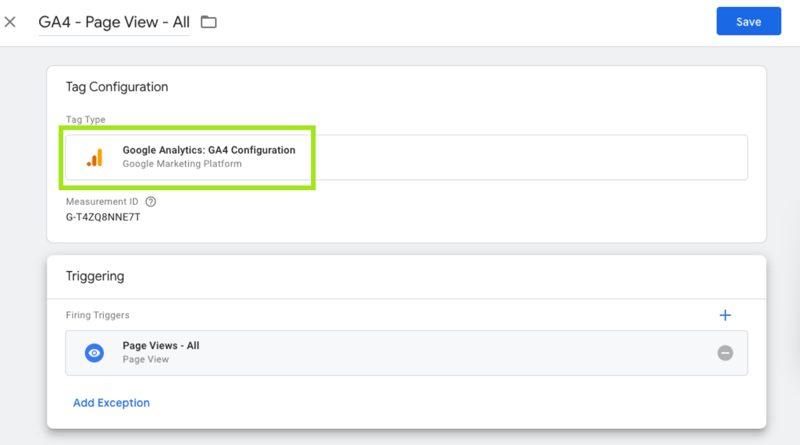
- Under Triggering, remove any existing trigger (e.g., “All Pages” or “Initialization - All Pages”).
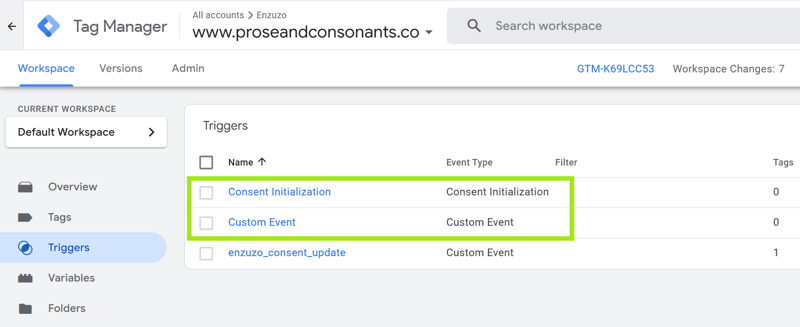
- Click the + icon → select the enzuzo_consent_update custom event trigger you created in Step 3. Then save the tag.
Update your Google Ads conversion tags
- Go to Tags → locate each Google Ads conversion tracking tag and edit the tag.
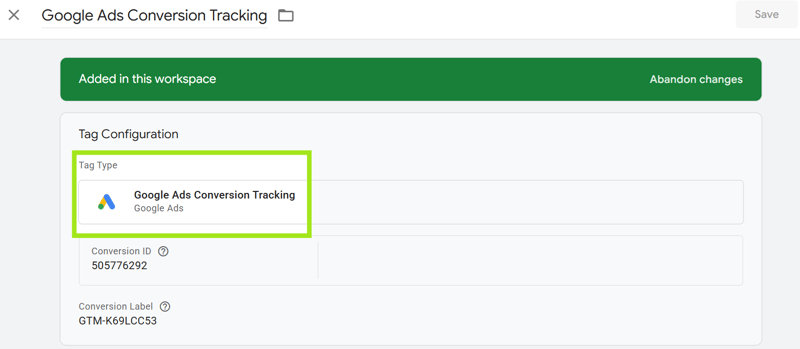
- Under Triggering, once again replace any existing trigger with the enzuzo_consent_update custom event trigger.

- Confirm your Conversion ID and Conversion Label are correctly entered. Save the tag.
(Optional but recommended) Update any additional GA4 event tags
- If you have separate GA4 Event tags (e.g., for button clicks, form submissions, etc.), apply the same enzuzo_consent_update trigger to them.
How to Test Your Google Consent Mode v2 Implementation
You’ve now deployed Enzuzo and configured your GA4 and Google Ads tags for Consent Mode v2. The final (and most important) step is to test everything thoroughly before going live. This quick audit will confirm that:
- Default consent is correctly set to denied.
- The Enzuzo banner triggers an update when the visitor accepts/declines .
- Your Google tags only fire after consent is granted.
1. Test in Google Tag Manager Preview Mode (Recommended for GTM users)
In GTM, open your container and click Preview. Enter your website URL in Tag Assistant and click Connect. A new tab will open with your site. On your site, interact with the consent banner by accepting, declining, or saving customized choices. Then return to the Tag Assistant tab.
In the left sidebar, review the consent-related events. Open the earliest Consent event to verify the default state, then open the later Consent event created after banner interaction to verify the update.
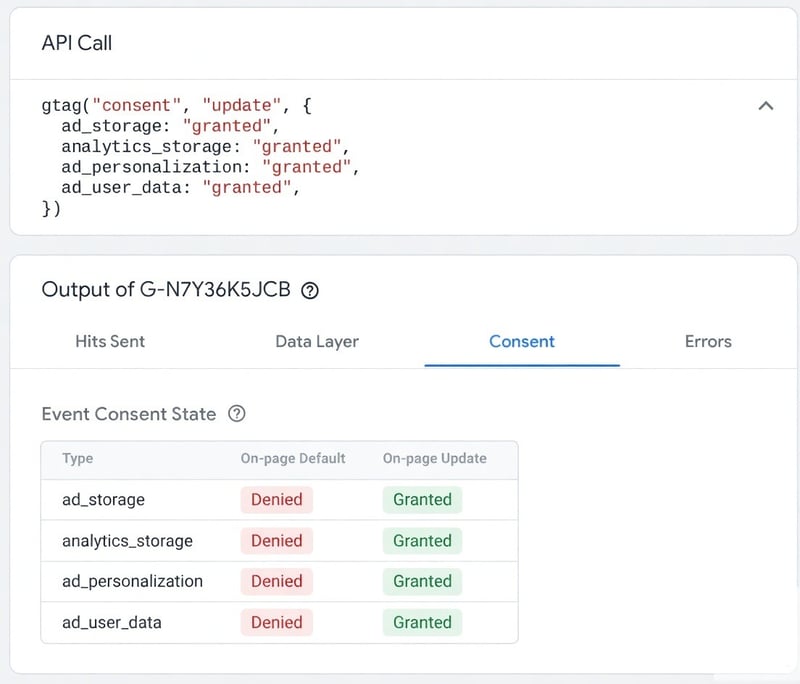
In the Consent tab, confirm that the default values are Denied for ad_storage, analytics_storage, ad_user_data, and ad_personalization, and that the updated values change to Granted after acceptance.
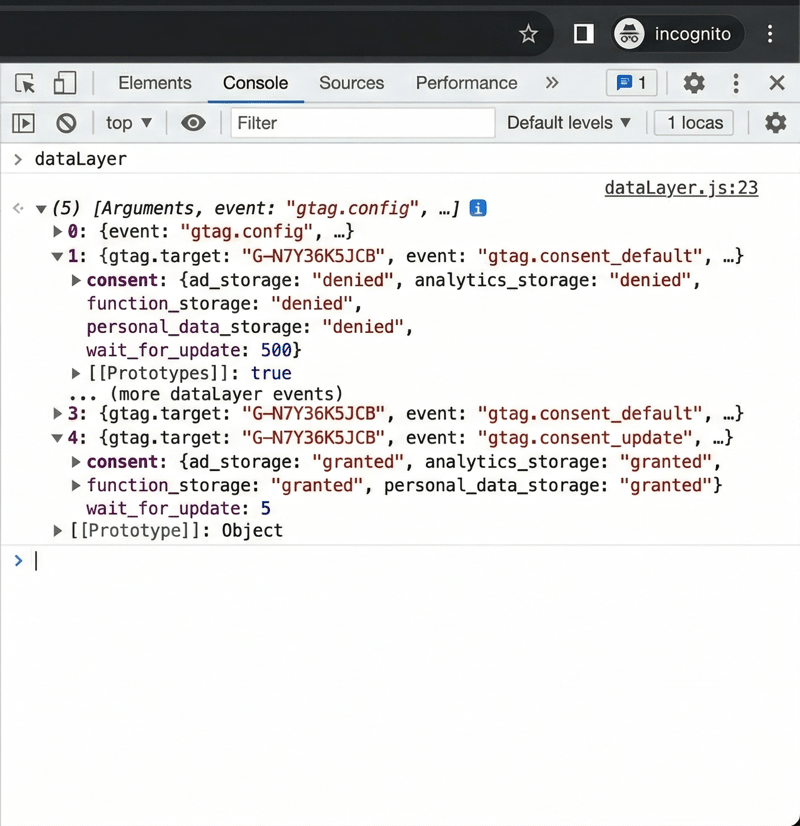
2. Quick dataLayer Inspection (Browser Console Check)
Open your website in a fresh Incognito window.
- Right-click → Inspect → go to the Console tab.
- Type dataLayer and press Enter.
You should see two consent entries at the top: First: gtag("consent", "default", { ad_storage: "denied", analytics_storage: "denied", ... })
Second (after banner interaction): gtag("consent", "update", { ad_storage: "granted", ... })
3. Use Google’s Official Consent Mode Checker (Google Tag Assistant)
Google’s recommended tool for a full Google consent mode audit is Google Tag Assistant:
- Go to tagassistant.google.com → enter your website URL and click Connect.
- Interact with the Enzuzo banner on your site.
- In Tag Assistant, find the earliest Consent event in the Summary list.
- Click the Consent tab. It should show the following passing result:
- On-page Default column = Denied for all four parameters (before interaction)
- On-page Update column = Granted after the visitor accepts
What to do if something fails?
If your test results do not match the expected outcomes above, here are the most common fixes to get your Consent Mode v2 working correctly.
- “Consent not configured” → Go back and ensure your Enzuzo tag uses the Consent Initialization trigger.
- Defaults still “Not set” → Double-check the Enzuzo Script URL in the tag.
- No update after banner click → Verify the enzuzo_consent_update trigger is attached to your GA4/Google Ads tags.
Common Google Consent Mode v2 Implementation Mistakes
Google Consent Mode often fails during the handoff between the banner, Google Tag Manager, and the tags themselves. This includes defaults loading too late, updates never firing, or old blocking logic staying in place, and fights with Consent Mode. The result is either a compliance problem, broken measurement, or both.
1. Setting the Default Consent Too Late
A common mistake is firing the default consent state after other tags have already started evaluating. In GTM, consent settings should run on the Consent Initialization trigger so they’re in place before any other triggers fire. If that does not happen, tags can read the wrong state on page load.
Consequence: Tags may fire before consent is established, creating a compliance risk and an inaccurate measurement setup.
2. Not Sending a Consent Update After the User Makes a Choice
Consent Mode needs both a default state and an updated state when the user accepts or declines. Google’s verification steps specifically tell you to check for an early default event and a later update event in Tag Assistant.
Consequence: The site can stay stuck in a denied state even after the user accepts, so analytics and ad measurement remain limited or fail to resume properly.
3. Only Configuring ad_storage and analytics_storage
Older implementations often stop at ad_storage and analytics_storage. Current Consent Mode setup and verification guidance also includes ad_user_data and ad_personalization, and Google states that ad_user_data is required for measurement use cases such as enhanced conversions and tag-based conversion tracking.
Consequence: The implementation may look complete on the surface, but still send incomplete consent signals for Google Ads, enhanced conversions, or personalized advertising workflows.
4. Leaving Old Exception Triggers or Extra Consent Checks on Google Tags
Google says two common reasons Google tags stay blocked in GTM are old exception triggers and additional consent checks. Google tags already have built-in consent checks, so layering older blocking methods on top can break how Consent Mode works.
Consequence: Tags may remain blocked even after consent is granted, leading to silent data loss and making debugging harder than it should be.
5. Mixing up Basic and Advanced Consent Mode
Basic and Advanced Consent Mode aren’t the same. In basic mode, Google tags are blocked until the user interacts with the banner. In advanced mode, tags load with denied defaults and send consent state and cookieless pings until the user makes a choice.
Consequence: If the setup blocks Google tags completely while the team thinks it is running advanced mode, they lose the denied-state signaling and modelling benefits that advanced mode is meant to preserve.
6. Ignoring Asynchronous Banner Loading
If the CMP loads asynchronously, it may not update consent before Google tags evaluate. Google’s developer documentation says to use wait_for_update in this situation, so tags do not send data before the consent state is updated.
Consequence: tags can fire against the wrong default state, or they can miss the later consent update window and fail to behave as expected.
7. Not Testing the Implementation in Tag Assistant
Many Consent Mode setups are published without verifying the actual consent events. Google recommends verifying the earliest consent event, the most recent update, and which tags fired or were blocked in Tag Assistant.
Consequence: Broken defaults, missing updates, and page-specific issues can sit unnoticed while the team assumes everything is working.
8. Misconfiguring Region-Specific Defaults
Google supports region-specific default consent behavior, and a default command without a region applies to everyone not covered by a more specific regional rule. That makes regional logic useful, but it also makes it easy to misconfigure.
Consequence: Visitors in one jurisdiction may get the wrong default consent behavior, or a broad fallback rule may apply where a more specific rule was intended.
👉 Ready to implement Google Consent Mode v2 without stitching the setup together by hand? Enzuzo’s consent management platform can help you deploy the banner, connect the consent flow to GTM, and manage Consent Mode in one place. Start free, no credit card required
FAQ about Google Consent Mode v2 Compliance
How do I implement Google Consent Mode v2?
Start with a consent banner or CMP, set default consent states before any Google tags fire, update the consent state after the visitor acts, then verify the setup in Tag Assistant. If you use GTM, put the consent logic on the Consent Initialization trigger. If you use a CMP partner, Google says those tools can simplify the banner and consent-mode setup path.
What is the difference between Google Consent Mode v1 and v2?
The key difference is that v2 adds ad_user_data and ad_personalization on top of the earlier storage signals. Google says ad_user_data covers consent for sending user data to Google for advertising purposes and is required for some measurement use cases, and ad_personalization covers personalized advertising. If you still run a v1 setup, you are missing part of the current signal set.
Is Google Tag Manager GDPR compliant?
GTM can support a GDPR-aware setup, but GTM by itself does not make a site compliant. Google’s documentation focuses on obtaining user consent, sending consent signals correctly, and making tags honor those choices through Consent Mode and consent settings. So the better answer is this: GTM is a useful implementation layer, not a compliance guarantee on its own.
How do I test if Google Consent Mode is working correctly?
Use Tag Assistant first. Google recommends it for website verification. Check the earliest Consent event for the default state, then trigger a banner action and check the updated Consent event. After that, review which tags fired or were blocked and, once the data has had time to process, review Google Ads diagnostics for confirmation.

Osman Husain
Osman is the content lead at Enzuzo. He has a background in data privacy management via a two-year role at ExpressVPN and extensive freelance work with cybersecurity and blockchain companies. Osman also holds an MBA from the Toronto Metropolitan University.